 Zinn® Agents
Connect Claude Code or Cursor to your hosting
Create an MCP connection, choose its permissions and add it to Claude Code or Cursor.
Step by step
Open AI tools
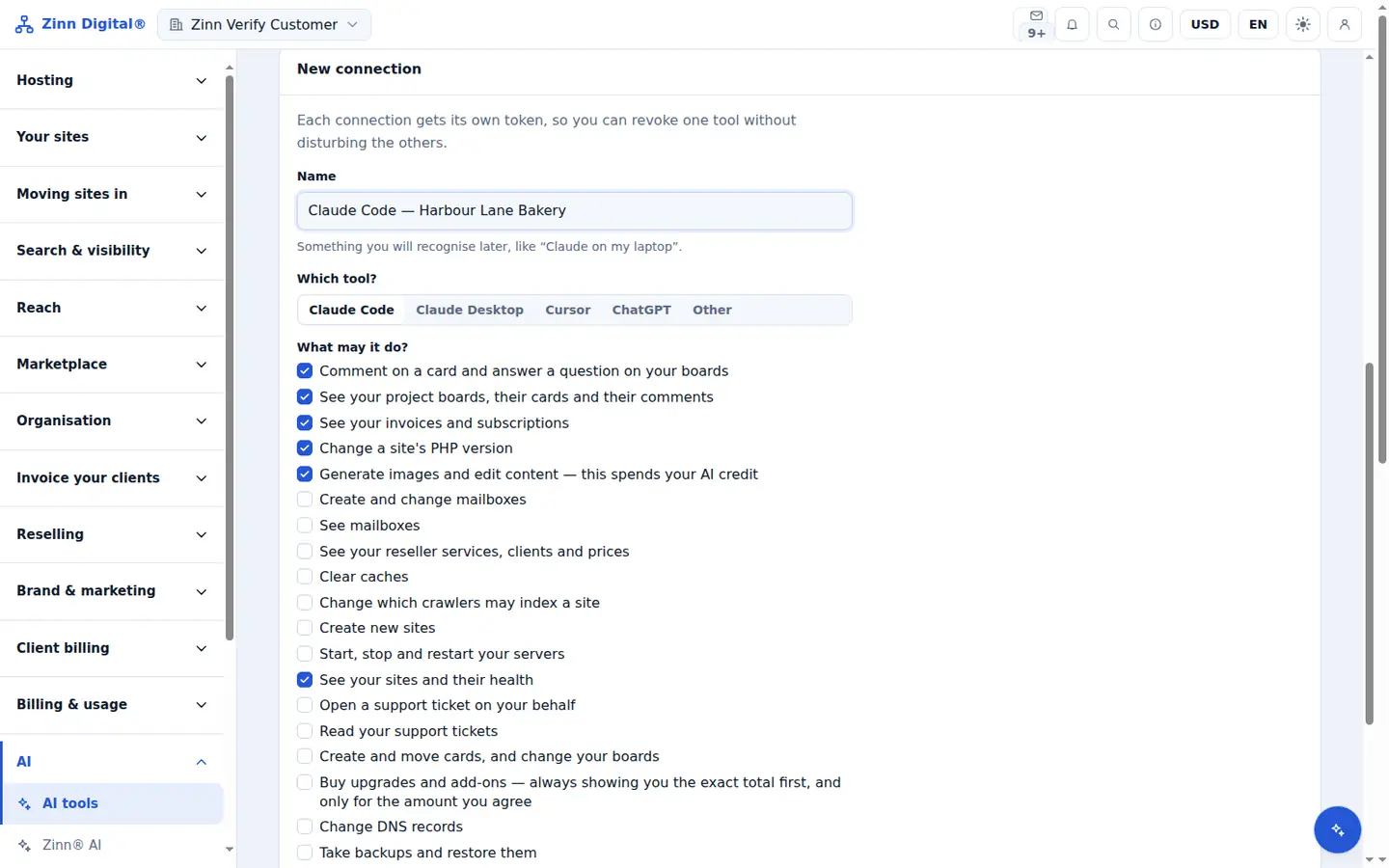
In the dashboard, open AI tools. New connection is on the same page.
Name it and choose the client
Enter a Name you will recognise and, under Which tool?, choose Claude Code or Cursor.
Tick what it may do
Under What may it do?, tick only the permissions the tool needs, then choose Create.
Copy the configuration
Copy the configuration shown for your client. The token is shown once, so copy it now.
Add it to your client
For Claude Code, run the one-line command or add the block to .mcp.json. For Cursor, add it to ~/.cursor/mcp.json. Restart the client and ask it to list your sites.
Included with Zinn Digital® hosting
Host with us and the AI comes with the account
Every Zinn Digital® hosting account includes the MCP server, the Ask Zinn® assistant and the AI migration agent at no charge, plus a one-time welcome credit for the site builder. On our servers, the chat agent reads a static site straight from its files and installs itself on WordPress.